
Building your menu
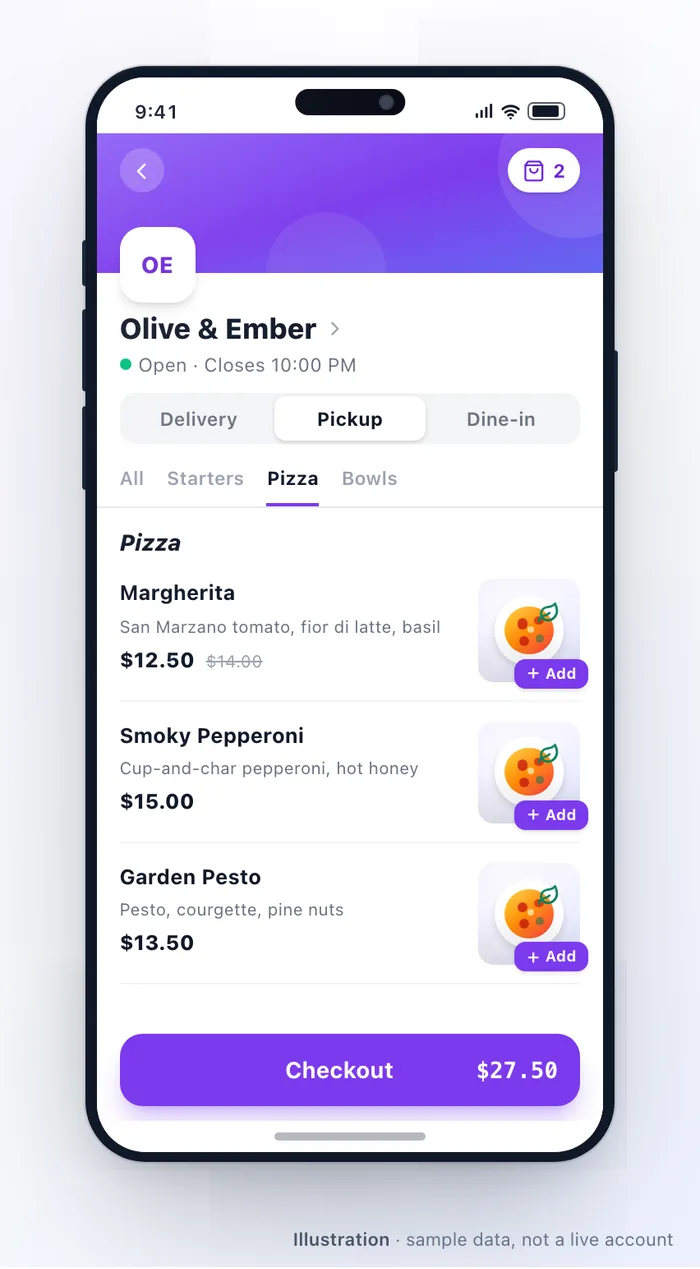
Your menu is the product. The builder lets you structure it exactly as customers should browse it, and everything you publish goes live across your app, web ordering, the kiosk, the POS register and dine-in menus immediately — no app release required.
The hierarchy
Section titled “The hierarchy”Category group optional — "Food", "Drinks", "Breakfast"└── Category the sections customers scroll — "Burgers" └── Item what they actually order ├── Variants Small / Medium / Large └── Add-ons Extra cheese, no onionsCategory groups are optional and bundle related categories. They earn their place on a long menu, or one with dayparts. On a short menu they are a level of navigation nobody needs.
Categories
Section titled “Categories”Give each one a clear, customer-facing name, optionally a description and image, and drag them into the order customers should see.
What an dish carries
Section titled “What an dish carries”More than most people use, and knowing what is there saves inventing workarounds:
- Identity — name, description and long description, a POS name for the kitchen or register, SKU and barcode.
- Imagery — a main image, a header image, and a gallery.
- Classification — category, badges, icons, dietary markers, brand.
- Pricing — base price, retail price and packing price, plus minimum and maximum order quantity.
- Tax — an override, where this dish is taxed differently. See Taxes & charges.
- Stock — a current count and a daily quota, active only where the outlet tracks inventory. See Availability.
- Variants and add-ons — see Add-ons & options.
- Upsells — other dishes to suggest alongside it.
- Language — every customer-facing field, per language.
Pricing per channel
Section titled “Pricing per channel”An dish can be priced differently by channel: delivery, pickup, dine-in and kiosk each take their own price, and each can be marked unavailable independently.
This is how a delivery price absorbs a courier cost while the counter price does not, and how a large sharing dish stays on the dine-in menu and off the delivery one. Set the base price first and use channel prices only where there is a real reason — a menu with four prices per dish becomes impossible to reason about.
Publishing
Section titled “Publishing”Changes go live immediately across every surface. There is no staging step, which is fast and unforgiving in equal measure: check a price twice before saving, because the next order will use it.
Who edits what
Section titled “Who edits what”You, from the dashboard, for structure and pricing — categories, new dishes, prices, tax.
Outlet staff, from the partner app, for the day-to-day — marking something sold out, disabling an dish until tomorrow, quick edits. What each person can touch is a per-user grant; see Users & roles.
That split is the right one. Whoever is standing in the kitchen when something runs out should be able to act on it without ringing you.
Import, export and POS sync
Section titled “Import, export and POS sync”XLSX export and import handles bulk work — a price rise across a category, a seasonal menu swap, a new outlet starting from an existing menu. Import runs in create, update, or create-and-update mode, and there is a copy mode for cloning between outlets.
Where you run a connected point-of-sale, the menu can be previewed, imported and pushed between the two rather than maintained twice. See POS integrations.
A build checklist
Section titled “A build checklist”- Sketch the categories on paper first, in the order customers should meet them.
- Create category groups only if the menu genuinely needs a level.
- Add dishes with real names, real descriptions and real photography.
- Build add-on groups once and attach them, rather than per dish.
- Set tax where it differs from the outlet default.
- Add channel prices only where there is a reason.
- Order a few dishes yourself, on a phone, as a customer would.
Troubleshooting
Section titled “Troubleshooting”| Symptom | Cause |
|---|---|
| An dish is not visible | It or something above it is disabled — see Availability |
| It shows but cannot be added | It is marked sold out, or out of stock where inventory is tracked |
| The price differs from what you set | A channel price, or a variant setting the price |
| A change did not appear | Changes are immediate; confirm you edited the right outlet |
| An add-on is missing from an dish | The group is not attached to it |
| An import removed things | Update mode overwrites; restore from your export |
Related: Add-ons & options · Availability · Taxes & charges · POS integrations
Was this page helpful?
This site uses a chat widget that sets a cookie so it can keep your conversation, and with your consent it measures page traffic. See the privacy policy.