
Order lifecycle
Every order moves through a fixed set of statuses. Knowing them tells your team what to do next, and tells you exactly where an order is when a customer asks.
The statuses
Section titled “The statuses”Placed → Pending → Accepted → Processing → Ready → Dispatched → In transit → Completed| Status | What it means | Who moves it on |
|---|---|---|
| PLACED | The order has been submitted. | — |
| PENDING | Waiting for your team to accept it. | Staff — Accept or Reject |
| ACCEPTED | Confirmed, with a preparation time promised to the customer. Receipts and kitchen tickets print here. | Kitchen starts |
| PROCESSING | Being prepared. | Staff — Mark ready |
| READY | Packed and ready to leave. | Staff hand it over, or a driver collects |
| DISPATCHED | A driver has been assigned and has the order. Delivery only. | Driver |
| IN TRANSIT | On the way to the customer. Delivery only. | Driver marks delivered |
| COMPLETED | Delivered or collected. Counts toward your reports. | — |
Two statuses end an order early:
- CANCELED — cancelled by staff, an admin, or the customer where you allow it. May trigger a refund and a cancellation fee. See Cancellations.
- FAILED — the order never became payable; an online payment that was never completed is the usual cause. It never reaches your kitchen and nothing is charged.
Both are excluded from sales totals but stay visible in reports, so you can see how often they happen and why.
Speed at the front of the queue
Section titled “Speed at the front of the queue”Customers watch the app while an order sits waiting to be accepted. Accepting quickly, with a Prep time you can actually hit, is the single biggest driver of good ratings.
The partner app and POS register both sound a new-order alert that keeps repeating until someone handles it — deliberately hard to ignore. If you would rather not have a human in this step at all, see Order automation; note that an automatically accepted order goes straight to PROCESSING.
What the customer is told
Section titled “What the customer is told”Customers are kept informed automatically. Depending on your notification settings they hear about:
- Accepted — with the estimated ready or delivery time
- Processing — optional, useful when preparation is long
- Ready — pickup customers are told to come and collect
- Dispatched / in transit — with live driver tracking where you have it
- Completed — often paired with a rating prompt or a points credit
- Edits, cancellations and refunds — whenever your team changes something
Staff are notified too, and drivers are alerted when an order is assigned.
By order type
Section titled “By order type”Delivery. After READY the order needs a driver: assign one yourself, let Auto-dispatch do it, or hand it to a Delivery networks. The order then moves through DISPATCHED and IN TRANSIT, and completes when the driver marks it delivered.
Pickup. No driver step. After READY the customer is told to collect, and staff complete the order at handover. Some restaurants require a short handover code at this point.
Dine-in. The order carries the table it came from, so staff know where to take it. There is no handover step — it completes when it is served, or when the tab is settled if the customer is paying at the end. See Dine-in QR ordering.
Scheduled. Placed in advance for a chosen time. It waits in the upcoming view and surfaces into live orders close to its slot, so the kitchen starts at the right time rather than when the order was placed. See Scheduled orders.
Payment along the way
Section titled “Payment along the way”- Prepaid orders — card, Apple Pay, Google Pay, wallet — are paid at checkout, before you ever see them. A payment that fails means an order that fails; it never reaches you.
- Pay on arrival — cash, card on delivery, card terminal, bank transfer — is collected at handover, and the apps mark clearly which orders still owe money.
- Edited orders may need a difference collected or refunded. See Editing & refunds.
Where to watch orders
Section titled “Where to watch orders”| View | What is in it |
|---|---|
| Partner app → Orders → Live orders | Everything in flight, grouped into lanes with counts |
| Upcoming orders | Scheduled orders waiting for their slot |
| The register and kitchen display | The same live orders, on the counter and in the kitchen |
| Order history | Completed, cancelled and failed orders |
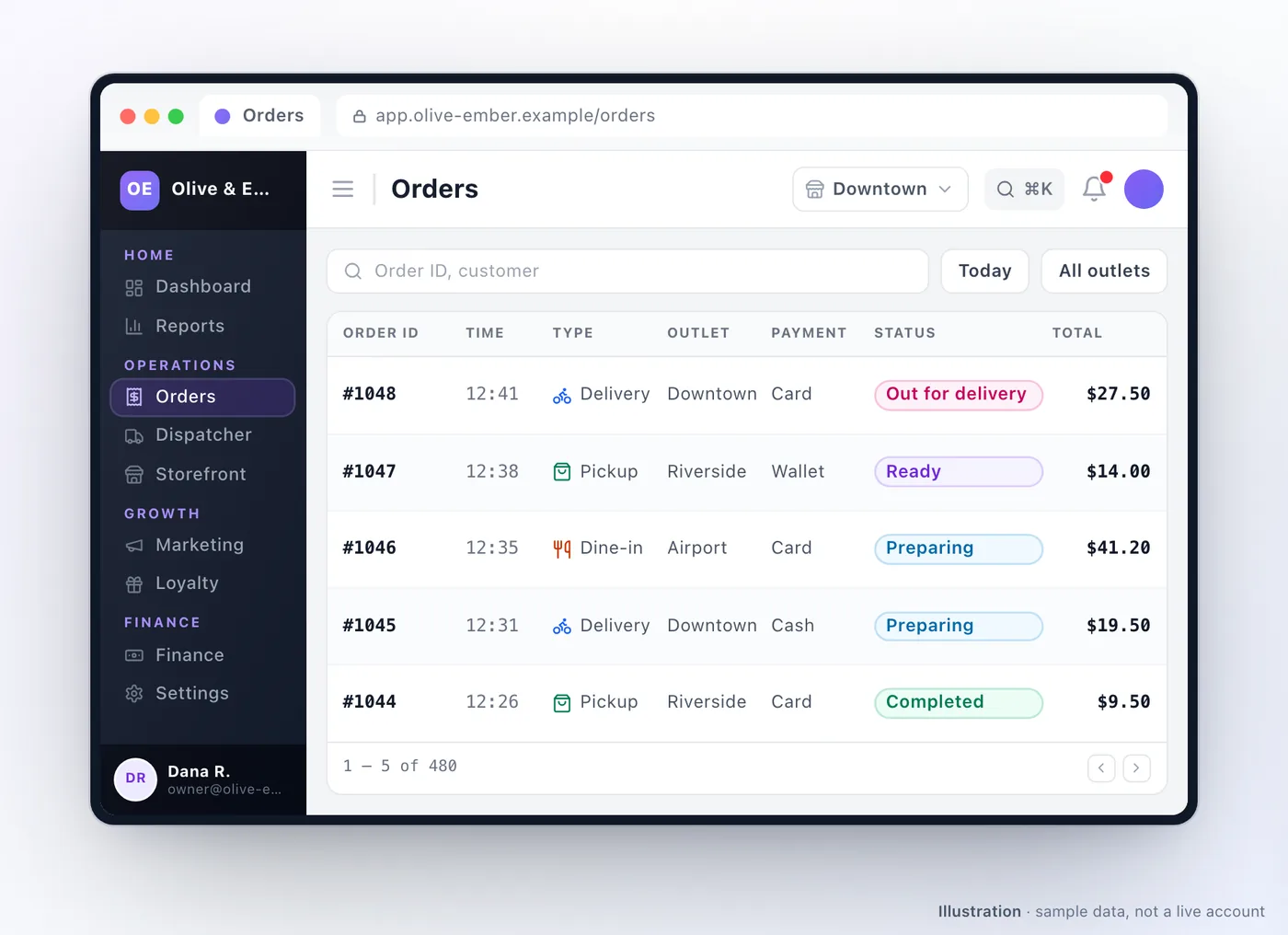
Dashboard → Reports (/reports/order-list) | Every order, filterable by status, channel, outlet, payment and more |
Related: Live orders · Editing & refunds · Cancellations · Prep time
Was this page helpful?
This site uses a chat widget that sets a cookie so it can keep your conversation, and with your consent it measures page traffic. See the privacy policy.