
Live orders
The live orders screen is where service actually happens. Every new order lands here with an alert, and everything in flight stays visible until it is done.
The screen
Section titled “The screen”Orders are grouped into sections with a count and colour each — NEW, PROCESSING, ACCEPTED, READY and OTHER. Expand one to see its orders.
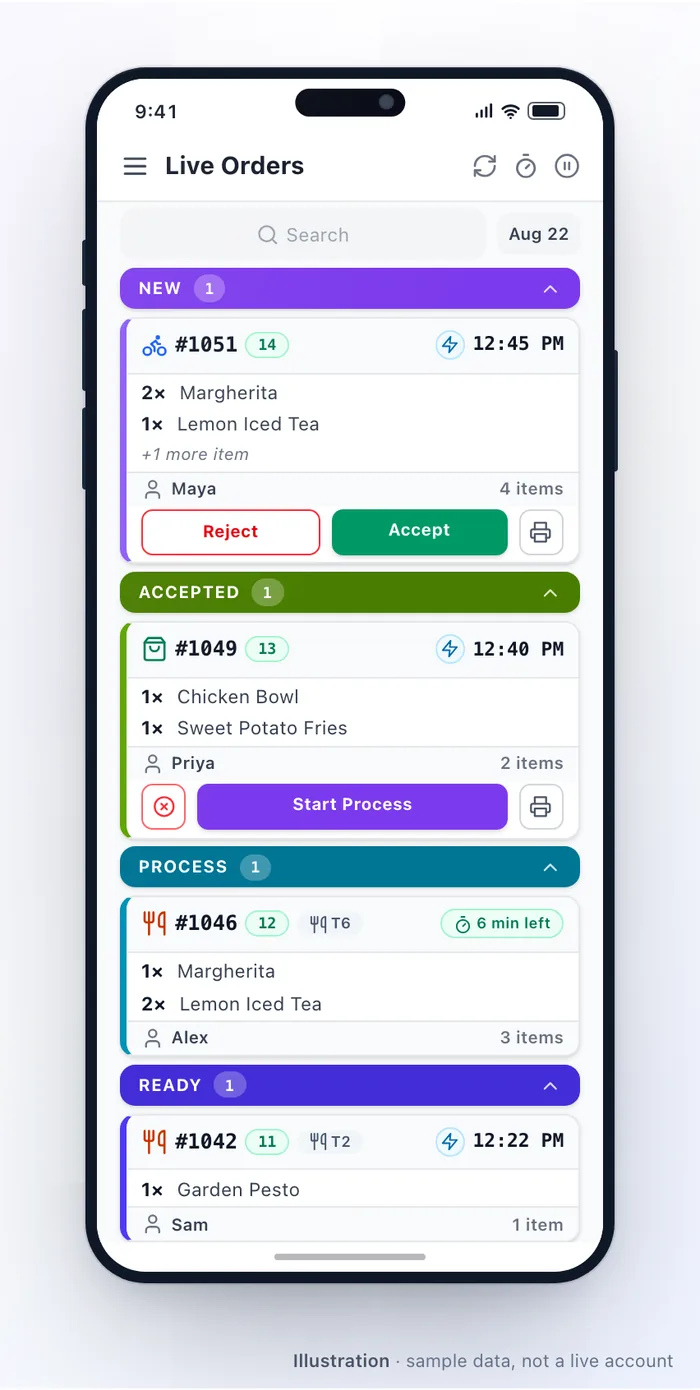
The top bar carries a refresh button, the outlet’s pause control, a search box, and a date picker for jumping to a particular day. When the outlet is paused, a banner explains why and until when, so the whole team can see at a glance that online orders have stopped — see Availability.
How orders arrive
Section titled “How orders arrive”- A new order sets off a repeating alert on every signed-in device at the outlet. It keeps going until somebody handles it, which is deliberate.
- The card shows what matters immediately: order type, dishes and quantities, total, whether it is paid or still owes money, the customer’s name, and any notes.
- Scheduled orders do not interrupt early — they wait in the upcoming view and surface near their slot. See Scheduled orders.
Accept or reject
Section titled “Accept or reject”Every waiting order needs a decision. The card offers Accept, Reject, Print and Print KOT (kitchen order ticket).
- Accept — confirm and set a preparation time in minutes. The customer is notified immediately with their estimated time. See Prep time.
- Reject — decline with a reason. A prepaid order is refunded according to your settings.
On accept, receipts and kitchen tickets print automatically if auto-print is on — see Receipt & kitchen printing. Both print buttons stay available through every later status, so a reprint is always one tap away.
If you would rather not have a human in this step for some channels, see Order automation — but note that an automatically accepted order goes straight to PROCESSING.
Moving the order along
Section titled “Moving the order along”| Action | Moves it to |
|---|---|
| Start Process | PROCESSING — the kitchen has started |
| Mark Ready | READY — pickup customers are told to collect; delivery orders are ready for a driver |
| Complete Order | COMPLETED — collected, served, or delivered |
Each step updates the customer’s app in real time.
What is available at each stage
Section titled “What is available at each stage”| Section | Buttons on the order |
|---|---|
| NEW | Reject · Accept · Print · Print KOT |
| ACCEPTED | Start Process · Edit Order · Cancel · Assign Driver (delivery) · Set Prep Time · print actions |
| PROCESSING | The same, plus Mark Ready |
| READY | Complete Order, plus Cancel / Assign Driver / Edit Order / print actions |
Once a driver is assigned, Reassign Driver replaces Assign Driver.
Getting a driver
Section titled “Getting a driver”Three routes, mixable per order:
- Assign manually — pick one of your own drivers; they get an alert with pickup and drop-off. See Drivers.
- Auto-dispatch — the platform offers the order to drivers on its own. While it is searching, staff can stop the search and take over manually. See Auto-dispatch.
- A delivery network — hand it to a connected provider and track their courier from the same card. See Delivery networks.
Delivery orders also carry Set Prep Time, so staff can move the estimate after accepting — worth doing when the kitchen falls behind, because dispatch timing follows it.
Once a driver has the order, the card shows their progress and the customer sees matching tracking.
Collecting payment
Section titled “Collecting payment”Prepaid orders show as paid and need nothing. For pay-on-arrival orders — cash, card on delivery, card terminal, bank transfer — the card shows the amount still due, and staff or the driver record payment at handover. If an edit changed the total, see Editing & refunds.
Editing, cancelling, calling
Section titled “Editing, cancelling, calling”From an order’s details, and subject to permissions, your team can edit it (add or remove dishes, change quantities, add a fee), cancel it with a reason, or call the customer — the number is on the order with a call button.
The three views
Section titled “The three views”| View | Contents |
|---|---|
| Live orders | Everything in flight, in its sections |
| Upcoming | Scheduled orders waiting for their slot |
| History | Completed, cancelled and failed orders — searchable, with reprints |
History covers day-to-day lookups: did table six pay, reprint yesterday’s receipt. For anything across days or outlets, use Reports.
A typical delivery order
Section titled “A typical delivery order”- The alert sounds; the order appears under NEW.
- Staff accept with a 20-minute prep time. The customer is notified; the receipt and kitchen ticket print.
- Start Process, then Mark Ready when it is packed.
- Auto-dispatch offers it to the nearest driver, who accepts.
- The driver collects; the customer sees live tracking.
- The driver marks it delivered and the order completes.
Related: Order lifecycle · Editing & refunds · Cancellations · Receipt & kitchen printing
Was this page helpful?
This site uses a chat widget that sets a cookie so it can keep your conversation, and with your consent it measures page traffic. See the privacy policy.