
Kitchen display
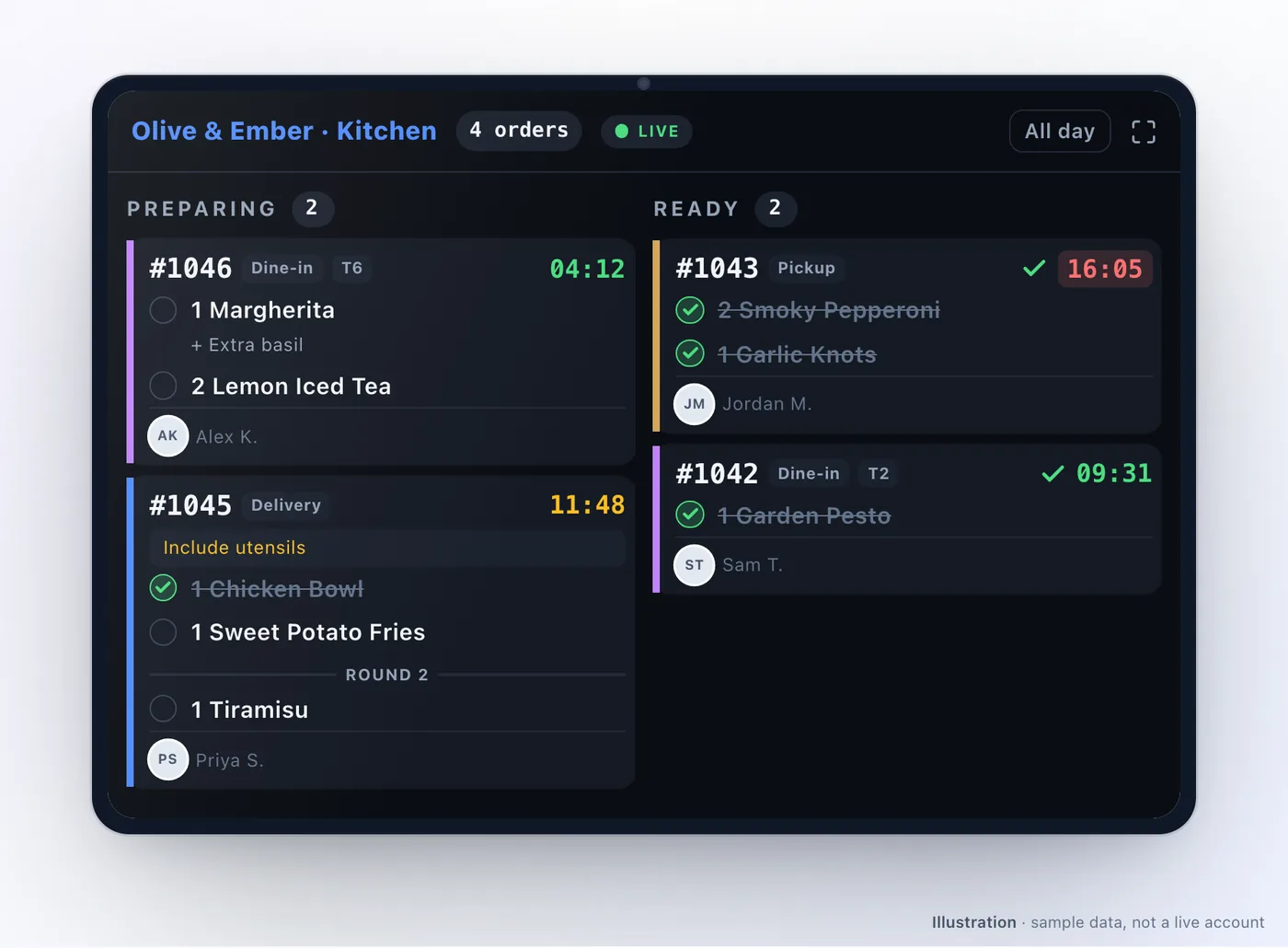
The kitchen display replaces the printed ticket rail. Orders arrive as cards in two lanes, staff check items off as they are made, and the order moves on when everything is done.
The board
Section titled “The board”Preparing and Ready — that is the whole board, deliberately.
The kitchen can move an order to Ready, bump it back to Preparing if something was missed, and Complete it for pickup and dine-in. Delivery orders are completed by the driver or the partner app, not the kitchen, so that action is not offered.
Cards carry a colour strip for the order type — delivery, pickup, dine-in, kerbside — so a station can tell at a glance what is going in a bag and what is going on a plate.
Per-item check-off
Section titled “Per-item check-off”Each dish on a ticket can be checked off individually, and the state is shared across every screen in the kitchen. Two stations working the same ticket see each other’s progress.
Checking off the last dish moves the order to Ready automatically. On a filtered screen, “done” marks only the dishes that screen can see — the order flips only when the stations between them have covered everything.
Kitchen stations
Section titled “Kitchen stations”A screen can show everything, or only one station’s work. That is how a grill screen shows grill work and a cold station shows salads.
Stations are set up once per outlet in the dashboard, under Outlet → Kitchen Stations: give each a name and the categories or dishes it makes. A station with nothing selected is a catch-all, which is what an expo screen wants. Each kitchen display then picks its station in its device settings, and the choice is shown read-only on the screen — a filter changed mid-service by whoever was nearest is how tickets go missing.
Kitchen printers on the POS register and the partner app are assigned to stations the same way, so each printer prints only its own lines. If a printer’s station cannot be found it prints the whole ticket rather than drop a dish.
Because each check-off is stamped with its station, prep time per station is available on the Kitchen Station Reports screen. Setting stations up, the catch-all, and what happens when a station cannot be found are covered in Kitchen stations.
All-day summary
Section titled “All-day summary”Press A for a running total of everything still to make across the whole Preparing lane — twelve burgers, four salads, six portions of fries — with checked-off dishes already deducted.
This is the single most useful feature on the board during a rush, because it lets a cook batch by dish instead of working ticket by ticket.
Timing colours
Section titled “Timing colours”Cards are coloured against the outlet’s prep time: green while inside it, a warning colour past it, and a pulsing danger colour at one and a half times. Nobody has to read a timestamp to know which ticket is slipping. See Prep time.
- A chime on a new ticket, so nobody has to watch the screen.
- An optional overdue escalation chime, off by default, which sounds when an order is badly late and stops as soon as someone opens the ticket or checks off an dish.
Leave the escalation chime off until you know your prep times are realistic — otherwise it will sound constantly and be muted within a day.
Keyboard operation
Section titled “Keyboard operation”The whole board runs from a keyboard: arrows to move, number keys to check off dishes, and single keys for done, bump back, complete, all-day, filter and help. Press ? for the map.
Kitchens usually drive it from a small macro pad rather than a full keyboard — it is faster than touching a screen with wet hands and much cheaper than a touchscreen that has to survive a kitchen.
Printing
Section titled “Printing”The kitchen display prints kitchen tickets only, never receipts. One printer per screen, and the print trigger is off by default so a newly paired screen does not spool paper before its printer is set up. Set it to print on arrival or on completion once you have a printer configured. Tickets can be reprinted from an expanded card. See Receipt & kitchen printing.
Deliberate limits
Section titled “Deliberate limits”- No cancel action. Kitchens do not cancel orders; that happens in the partner app or the dashboard.
- No outlet switcher. A screen belongs to one outlet.
- No on-device filter editor — by design, as above.
Troubleshooting
Section titled “Troubleshooting”| Symptom | Try this |
|---|---|
| The screen shows the wrong tickets | Check which station the device is set to, and that station’s categories under Outlet → Kitchen Stations |
| An order will not go Ready | Some dishes are unchecked, possibly on another station’s screen |
| Delivery orders will not complete | Correct — the driver or the partner app completes those |
| An “offline” banner is showing | The screen keeps the last known tickets and reconnects on its own; check the outlet network |
| A banner warns the board is full | Very high volume; clear completed tickets so newer ones are not pushed out |
| Nothing prints | The print trigger defaults to off — set it once a printer is configured |
| Everything is red | The prep time is set below what the kitchen can achieve |
Related: Kitchen stations · Devices & staff PINs · Receipt & kitchen printing · Prep time · POS register
Was this page helpful?
This site uses a chat widget that sets a cookie so it can keep your conversation, and with your consent it measures page traffic. See the privacy policy.