
Self-order kiosk
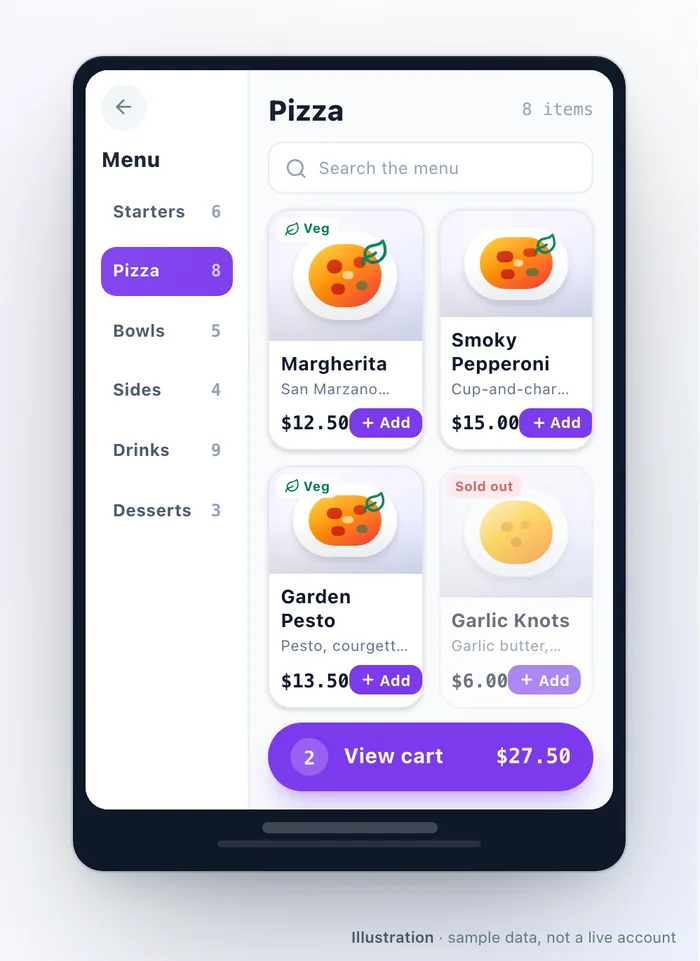
The kiosk is a screen customers order from without staff. It serves your menu, takes payment, prints a receipt, and sends the order to the same place every other order goes.
What a customer does
Section titled “What a customer does”Idle screen → optional sign-in → menu → optional upsell → checkout → confirmation. Every step but the middle two is configurable.
Signing in is how a walk-in customer gets their rewards, vouchers and membership benefits at a kiosk. They enter a phone number, or scan their loyalty code from their phone, and can register on the spot. You choose whether this is required, optional or off, whether it happens before the menu or at checkout, and whether registration is required, optional or skipped.
Required sign-in captures more customers but adds friction to a queue. Optional sign-in at checkout is the usual compromise.
Settings worth knowing
Section titled “Settings worth knowing”| Setting | Effect |
|---|---|
| Idle timeout and confirmation reset | How long an abandoned order sits before the kiosk clears itself and returns to idle |
| Reward redemption, coupons, vouchers | Which of your loyalty mechanisms can be used at the kiosk. Each is separate |
| Pickup and dine-in | Which order types the kiosk offers |
| Pickup code | Prints a 4-digit code on the receipt for calling orders |
| Tips | Percentage presets and whether a custom amount is allowed |
| Payment | Pay at counter, card terminal, or both — and which is offered first |
| Receipt auto-print | Print without asking |
| Upsell | Show a suggestion screen before checkout |
| Menu search and hide sold out | How the menu behaves on a touch screen |
Membership redemption is deliberately not offered at the kiosk — it is a register action, where staff are present.
Pricing and availability at the kiosk
Section titled “Pricing and availability at the kiosk”The kiosk is a channel of its own, which means:
- An dish can carry a kiosk price that differs from its delivery or pickup price.
- An dish can be hidden from the kiosk while staying orderable elsewhere.
- A charge can be scoped to the kiosk, or scoped to exclude it.
That is how a delivery surcharge stays off a walk-up order, and how a kiosk-only combo price works. See Availability.
There is also a limit of 99 line items on a kiosk order — a guard against a child leaning on a screen, not a business rule you will meet.
Payment
Section titled “Payment”Two options, and you can offer either or both:
- Pay at counter — the kiosk places the order and the customer pays a person.
- Card terminal — the customer pays at the kiosk on a card reader. See Card terminals.
If both are switched off, the kiosk falls back to pay at counter rather than becoming unusable. If a reader is offline, the kiosk says so plainly and offers the counter instead — it does not sit and spin.
Pricing is calculated on the server
Section titled “Pricing is calculated on the server”The kiosk never decides what an order costs. It asks, and the server answers with the same menu, prices, taxes, charges and discounts every other channel uses. Two consequences worth planning for:
- A kiosk cannot take orders offline. No network, no ordering. If the outlet has flaky connectivity, that is worth fixing before the kiosk is worth buying.
- A duplicate cannot be created by tapping twice. A repeated confirmation resolves to the same single order.
The on-device admin screen
Section titled “The on-device admin screen”Tap the “Powered by” line at the bottom of the idle screen five times quickly, then enter the device admin PIN. It shows what the device is, what it is connected to, and its configuration. Anything that changes behaviour is set in the dashboard, not here.
Troubleshooting
Section titled “Troubleshooting”| Symptom | Try this |
|---|---|
| The kiosk shows “disabled” | Kiosk is off in Feature Settings for your account |
| It went back to setup on its own | The device was deactivated in Devices |
| The card reader says it is offline | See Card terminals; the kiosk will offer pay-at-counter meanwhile |
| Rewards or vouchers cannot be used | Each is a separate kiosk setting, and vouchers additionally need the customer signed in |
| An dish is missing from the kiosk only | It is hidden on the kiosk channel, or sold out |
| Prices differ from the app | The dish carries a kiosk price, or a charge is scoped to a different channel |
| Receipts do not print | Check the printer connection and whether receipt auto-print is on |
| Nothing works and the screen is blank of data | The kiosk needs a network connection to price and place orders |
Related: Devices & staff PINs · Card terminals · Availability · Kitchen display
Was this page helpful?
This site uses a chat widget that sets a cookie so it can keep your conversation, and with your consent it measures page traffic. See the privacy policy.